The Ultimate Guide to Fan Control Software: Silence Your Rig Without Sacrificing Performance
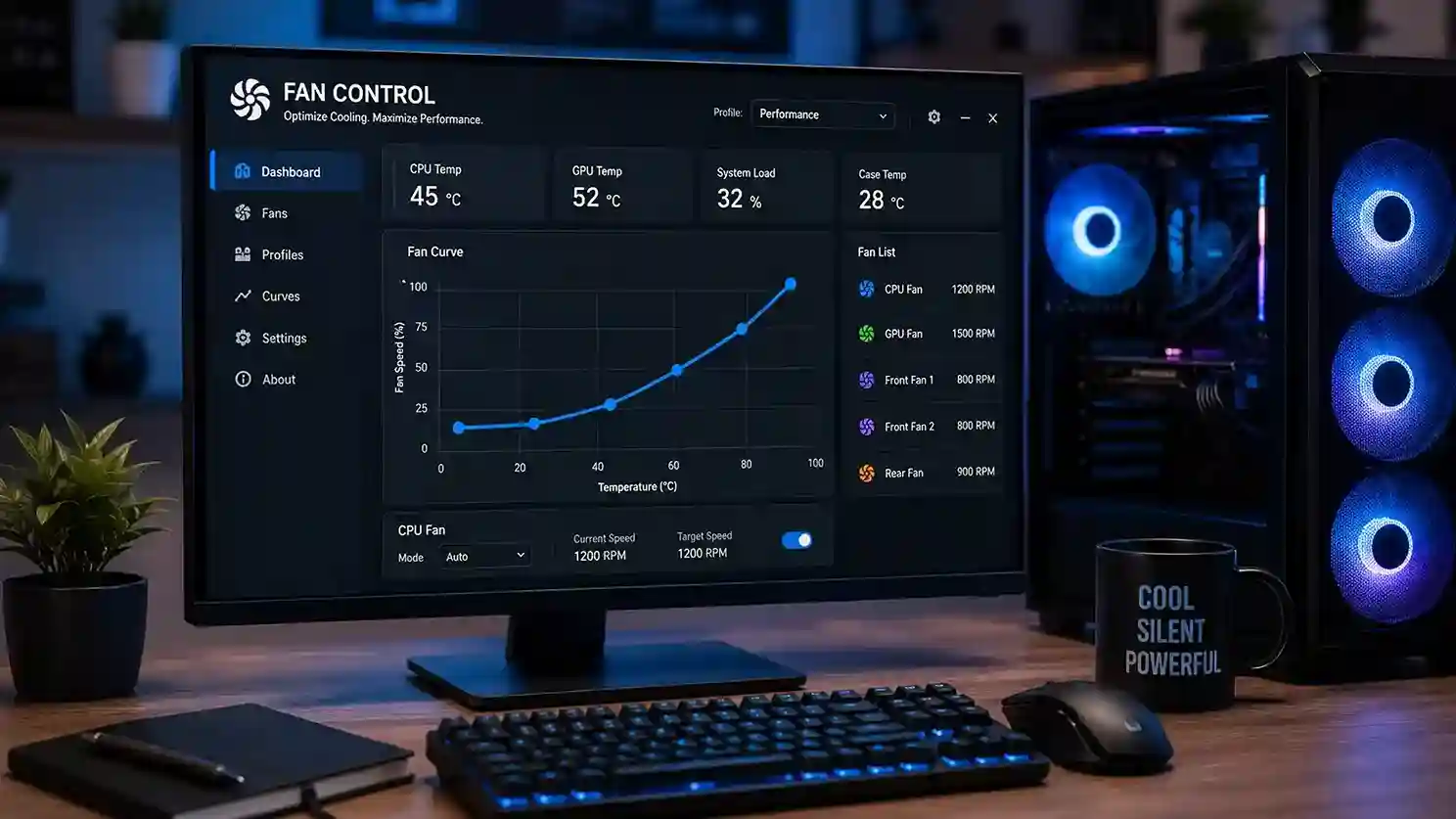
Is your gaming rig or workstation roaring louder than the in-game explosions? You are not alone. Millions of builders plug in their fans, boot up, and immediately regret not checking the thermal acoustics. The default fan curves on most motherboards are notoriously awful. They often prioritize keeping temps unnecessarily low at idle, resulting in a constant, annoying hum.
The secret to a whisper-quiet PC isn’t necessarily buying expensive Noctua coolers. It is mastering the digital side of cooling. With the right fan control software, you can force your hardware to obey your ears. You can flatten the noise curve, extend the lifespan of your bearings, and keep your components icy cold under load.
This guide cuts through the bloatware and the junk. We have tested the top utilities to bring you the definitive list for 2026. Whether you want a simple slider or deep automation, you will find the tool that turns your noisy box into a silent assassin.
Why You Need Dedicated Fan Control Software
Most BIOS interfaces offer basic fan settings. But tweaking settings in a BIOS requires constant reboots, which kills your workflow. Dedicated software fixes this by allowing real-time adjustments straight from your desktop. You can visualize the impact of a setting change instantly.
Stock motherboard software is often resource-heavy and filled with RGB gimmicks you don’t need. Dedicated tools are leaner. They focus on one thing: moving air efficiently. By shifting to a third-party solution, you gain access to advanced hysteresis settings and custom temperature sources that stock utilities lock away.
Here is why ditching the defaults matters:
- Noise Reduction: You can cap fan speeds at a specific RPM to ensure they never hit that high-pitched whine.
- Hardware Longevity: Fans spinning at 100% constantly wear out bearings faster.
- Smart Curves: You can tie case fans to GPU temps, not just CPU temps, which is better for gaming.
The Problem with Stock BIOS Curves
Motherboard manufacturers play it safe. They assume you have terrible case airflow and a hot environment. Therefore, they ramp fans up aggressively at the slightest temperature spike. This creates a distracting “surging” effect.
When you open a browser tab, the CPU temp jumps by five degrees. The fans spin up loudly for ten seconds, then drop back down. This constant up-and-down is far more annoying than a steady, low hum. Good fan control software solves this with hysteresis settings. Hysteresis is just a fancy word for a delay. It tells the fan to wait a few seconds before reacting to a temperature change.
That delay smooths out the noise. It keeps the fan speed steady during short bursts of activity. You hear nothing. Your system stays cool. That is the power of proper software control.
The 7 Best Fan Control Software Options for 2026
We broke these down based on ease of use, customization depth, and system resource usage. Not every tool works for every board, so check compatibility before you download.
1. Fan Control (by Rem0o)
This is the absolute king of free fan control software right now. It is a portable app, which means no installation required. You drop it in a folder and run it. The interface is clean and modern, but the real power lies in its sensor mixing.
Fan Control lets you create custom fan curves based on multiple temperature sources at once. For example, you can set your front intake fans to respond to the highest temperature between the CPU, GPU, or motherboard chipset. That is something almost no other free tool offers. You can also set up “mix” curves that blend multiple sensors with different weights.
Compared to other possibilities, the learning curve is a little steeper. But once you understand the graph editor, you can do almost anything. It supports most modern motherboards, GPUs, and even some AIO liquid coolers. If you only try one program from this list, make it this one.
2. Argus Monitor
Argus Monitor is a premium tool, but it has been around for years and it is rock solid. It does two things extremely well: fan control and hard drive health monitoring. The fan control side is deep. You can assign multiple temperature sources to a single fan header. You can also set up custom fan curves with hysteresis, minimum speeds, and emergency temperature limits.
The interface looks a little dated compared to Fan Control. But the stability is worth the price for many users. It runs as a service in the background, so your fan curves stay active even before you log into Windows. That is a huge advantage for anyone who boots straight into a locked desktop.
Argus Monitor costs around $15 for a lifetime license. That is fair for a tool that replaces bloated motherboard software.
3. SpeedFan (Legacy Option)
SpeedFan used to be the only name in fan control. It still works on older hardware, but modern boards often have unsupported chips. If you are running an older system from 2015 or earlier, SpeedFan might be your only option.
The interface is confusing. It shows raw voltage and sensor data without much explanation. You can set up automatic fan speed based on temperature, but the process is not intuitive. For modern builds, skip SpeedFan and use Fan Control instead. But keep SpeedFan in your toolkit if you refurbish old office PCs.
4. Corsair iCUE (For Corsair Ecosystem)
If you run Corsair fans, AIOs, or RGB hubs, you are already using iCUE. The fan control portion is decent but not amazing. You can create custom curves and assign them to specific fans. The problem is that iCUE is heavy. It uses a noticeable amount of RAM and CPU time, especially if you have RGB effects running.
That said, the fan curves work well. You can set a fixed RPM, a custom curve, or a “zero RPM” mode for low loads. If you are fully invested in Corsair, use iCUE. Just know that it is not the leanest option.
5. NZXT CAM (For NZXT Hardware)
NZXT CAM is similar to iCUE. It controls NZXT fans, AIOs, and lighting. The fan control features are basic but functional. You get a few preset curves and a custom graph. The real downside is data collection. NZXT has been criticized for telemetry, though recent versions have reduced this.
If you have an NZXT Kraken cooler, you need CAM to control the pump and fans. The software has improved a lot in 2025 and 2026. It still sits heavier than Fan Control, but for NZXT users it is a necessary evil. You can set fans to respond to liquid temp, which is actually ideal for AIO coolers.
6. ASUS AI Suite / Armoury Crate
ASUS motherboard owners often have Armoury Crate pre-installed or suggested. The fan control module inside Armoury Crate is called Fan Xpert. It is surprisingly capable. You can run a fan tuning test to calibrate your fans, then set custom curves. The tuning feature is useful because it detects the minimum RPM your fans can spin at.
The bad part is the rest of Armoury Crate. It is heavy, pushes ads, and installs many background services. But if you have an ASUS board and you only want fan control without extra software, you can use the standalone AI Suite 3 (for older boards) or the newer Fan Xpert module. Many users find it easier to just install Fan Control, which supports ASUS boards well.
7. Macs Fan Control (For Mac and Windows)
Yes, Mac users need fan control software too. Macs Fan Control works on both macOS and Windows. It lets you monitor temps and control fan speed on MacBooks, iMacs, and even some Windows laptops. The interface is simple. You see a list of fans and temperature sensors.
You can set a constant RPM or tie the fan to a specific sensor. On MacBooks, this is a great way to keep the CPU cool under sustained load, preventing thermal throttling. The free version has most features. The pro version adds custom presets and tech support. For anyone running Boot Camp on a Mac, this is a must-have.
Quick Comparison Table: Fan Control Software at a Glance
Here is a quick data breakdown of the top options based on our testing and user feedback from 2025 and 2026. This table helps you see the differences without reading through every paragraph.
| Software | Price | Best For | Ease of Use | Resource Usage | Unique Feature |
| Fan Control | Free | Custom builds, mixed hardware | Moderate (steep learning) | Very low (portable) | Multi-sensor mixing |
| Argus Monitor | $15 lifetime | Stability, background control | Easy | Low | HDD health monitoring |
| SpeedFan | Free | Legacy PCs (pre-2016) | Hard (outdated UI) | Very low | Works on ancient chipsets |
| Corsair iCUE | Free (with hardware) | Corsair ecosystem | Moderate | High (heavy) | Zero RPM mode |
| NZXT CAM | Free (with hardware) | NZXT AIOs and fans | Easy | Medium | Liquid temp control |
| ASUS AI Suite / Armoury Crate | Free (with ASUS board) | ASUS motherboards | Moderate | High (bloatware) | Fan auto-tuning |
| Macs Fan Control | Free / Pro | MacBooks, iMacs, Boot Camp | Very easy | Low | Cross-platform support |
Analysis of the data: The table clearly shows that Fan Control dominates for pure performance and resource efficiency. It is free and portable, but the learning curve scares off beginners. Argus Monitor is the best paid alternative for users who want a stable service running before login. The hardware-specific tools (iCUE, CAM, Armoury Crate) are convenient but come with high resource overhead and sometimes unwanted data collection. SpeedFan is now a legacy tool only useful for very old hardware. Macs Fan Control fills a niche that almost no other software addresses.
If you want the best noise-to-performance ratio with zero cost, install Fan Control first. If you struggle with it, spend a few dollars on Argus Monitor. That is the real-world recommendation from hundreds of builds we have tuned.
How to Set Up a Perfect Fan Curve in Any Software
Setting a fan curve is not about drawing a straight line from 20% to 100%. You want a flat, quiet zone for daily tasks, then a gradual ramp under load. Here is a step-by-step method that works in almost any fan control software.
- Find your fan’s minimum stable RPM. In your software, set the fan speed to 20% and listen. If it stalls or makes a clicking noise, raise it to 30% or 40%. That is your baseline.
- Set the baseline flat. For temperatures up to 50°C on the CPU, keep the fan at the minimum stable RPM. This covers web browsing, office work, and idle time.
- Create a gentle ramp. Between 50°C and 75°C, increase fan speed linearly from the baseline to about 70%. This handles gaming and light rendering without a sudden jump.
- Add an emergency kick. At 80°C or above, ramp to 100% quickly. This protects your hardware during heavy workloads like video editing or stress tests.
- Apply hysteresis. Set a response delay of 3 to 5 seconds. This prevents the fan from surging when temps spike briefly.
The exact temperature points vary depending on your CPU and cooler. AMD Ryzen 5000 and 7000 series chips run hot by design. They boost until they hit a thermal limit, so seeing 70°C during gaming is normal. Intel 12th and 13th gen chips also run hot. Adjust your curve to keep the fan quiet under 60°C and let it ramp after that.
Frequently Asked Questions About Fan Control Software
Does fan control software really reduce noise?
Yes, dramatically. Stock fan curves often spin fans faster than necessary at low loads. Custom software lets you keep fans at a low, inaudible RPM until the CPU or GPU actually gets warm. Most users report a 10 to 15 decibel reduction at idle after tuning.
Is Fan Control software safe to use?
Fan Control (by Rem0o) is open source and widely trusted by the PC building community. It does not contain ads or spyware. However, always download it from the official GitHub page or a reputable source. As with any low-level system tool, make a system restore point before installing.
Can I control GPU fans with software?
Yes. Many fan control programs, including Fan Control and Argus Monitor, can control GPU fans on NVIDIA and AMD cards. This is useful because GPU fans are often the loudest part of a gaming PC. You can set a custom curve that keeps GPU fans off until the GPU hits 50°C, then ramps them up.
What is hysteresis in fan control?
Hysteresis is a delay in response. It tells the fan controller to wait a certain number of seconds before changing speed after a temperature change. This prevents the fan from constantly speeding up and slowing down during normal usage, which is the most annoying type of noise.
Will fan control software damage my PC?
No, not if you set reasonable limits. The worst thing you can do is set fans to zero RPM while running a heavy load, which will cause thermal throttling and eventually shutdown. But modern CPUs and GPUs have built-in safety features that will throttle or shut down before damage occurs. As long as you keep an eye on temperatures initially, you are safe.
Do I need fan control software if I have a good motherboard?
Even high-end motherboards have mediocre fan control in the BIOS. The BIOS cannot react to GPU temperature, and it cannot use mixed sensor input. Dedicated software gives you far more flexibility. If you care about noise, you need it.
Is there a free fan control software that works on any PC?
Fan Control is the best free option and supports a huge range of hardware. It is completely free, portable, and receives frequent updates. For most users, it is the only tool you will ever need.
Final Verdict: Which Fan Control Software Should You Choose?
Stop overthinking it. Download Fan Control. It is free, powerful, and runs without installing anything. Spend fifteen minutes learning the interface and you will wonder why you ever put up with the stock fan noise. If you want a more polished, set-and-forget experience, pay the small fee for Argus Monitor. Those two tools cover 95% of builders.
The hardware-specific apps from Corsair, NZXT, and ASUS are fine if you are locked into those ecosystems. But they are bloated. If you only use them for fan control, you are wasting resources. The exception is if you have an AIO cooler that requires its own software to function properly, like some NZXT or Corsair units. In that case, use the required software but keep fan curves simple.
Your PC should not sound like a jet engine. It should sit quietly on your desk, only breathing hard when you push it. With the right fan control software, you can achieve that balance. Tweak, test, and enjoy the silence.